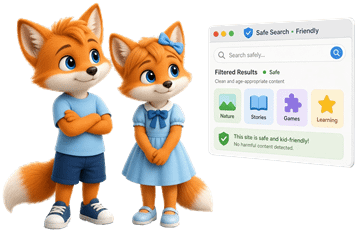
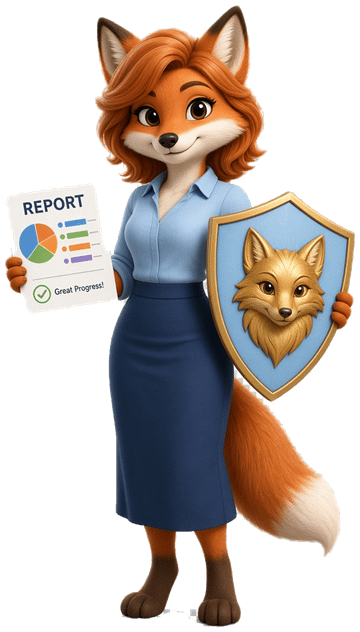
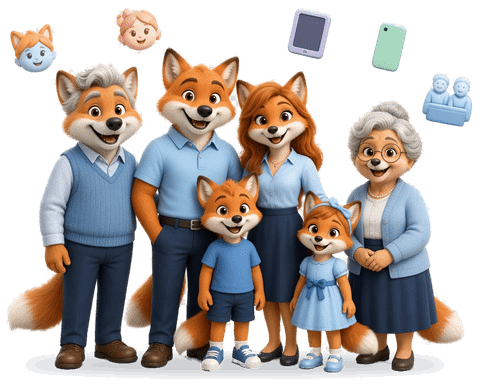
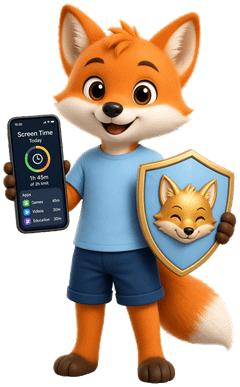
FoxGuard keeps your child safe online.Screen time, app time limits, a safe browser with web and games filters – the rules apply automatically. Plus the FoxGuard app and parent portal for you, and a simple view for grandparents. Your child can ask at any time – and always sees that and how they are protected.
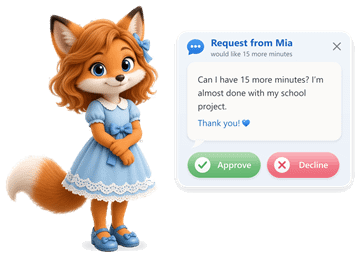
Request from MiaCan I have 15 more minutes?→ to Mum & Dad
Grandma: +15 min
Daily e-mail report
Hotspot: on · 20 min
Left today45 min
Journey companion on – Mia is on her way to school
Visible, not hidden
The FoxGuard shield always sits in the address bar. Your child knows what applies – nothing happens behind their back.
Together, not against each other
Rules you agree on together. And when a little more time is needed, your child simply asks.
Frugal, not nosy
FoxGuard only records what it needs for its job – no ads, no trackers. Data is stored on servers in Switzerland.
How it works
Ready in three steps
One app for both phones – install, pair, talk about the rules. That’s it.
1
Install
Install FoxGuard on your phone and on your child’s Android phone. On first launch, you choose the role.
“Browser”on your child’s phone“FoxGuard”on your phone
2
Pair with a QR code
Choose “Add child” in the FoxGuard app or in the parent portal and scan the QR code with your child’s phone.
QR codevalid for 15 minutessingle use
3
Set the rules together
Sit down together: when to browse, for how long, and which sites are fine? Your child knows what applies – and can ask at any time.
Browsing timesFiltersBonus time
On your child’s phone the app is then called “Browser”, on yours “FoxGuard”. You manage everything in the app or comfortably in the parent portal on your computer. New app versions arrive automatically.
Features
Everything a family needs – nothing more
For your child’s phone, for you and for the grandparents: clear times, sensible filters and an overview that makes conversations easier instead of sowing mistrust.
Time that fits
Clear times for the whole phone instead of evening debates.
Screen time for the whole phone
Time limits for individual apps
Time windows for each weekday
Separate weekend limit
Bonus time for special days
Break reminder
Instant pause with one tap
A sensible web filter
Protects against content that doesn’t belong in a child’s room.
Categories, e.g. adult content, social networks, videos
SafeSearch enforced on search engines
Your own lists: allowed and blocked
For younger kids: selected sites only
Schedules for individual sites
Strict games filter
Also detects online and browser games embedded in other pages.
Known gaming sites and platforms
Games embedded in the browser
Learning sites such as chess or Scratch stay allowed
Allow individual sites on purpose
Talk instead of guessing
Your child asks – instead of secretly looking for workarounds.
Requests to unlock sites or for more time
Messages between child and parents
Push notifications in the FoxGuard app
Approve or decline with one tap
Overview without surveillance
You see how long each app was used and what happens in the FoxGuard browser – nothing more.
Screen time and usage per app
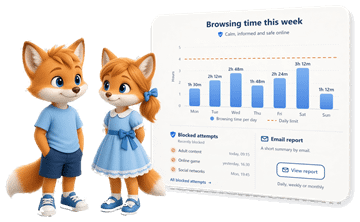
Weekly overview of browsing time
Blocked attempts at a glance
E-mail report: daily, weekly or monthly
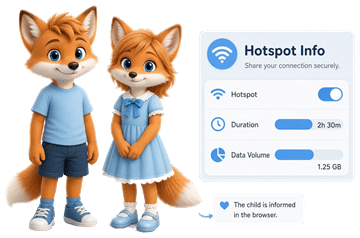
Hotspot – recorded honestly
If your child’s phone shares its internet, you’ll know.
Only: on/off, duration and data volume
Never: connected devices or visited pages
Your child is told about it in the browser
For the whole family
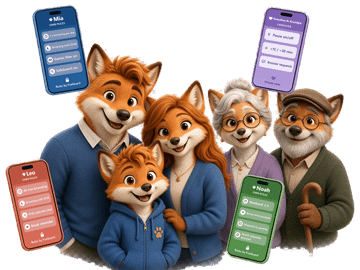
Each child with their own rules.
Manage several children
Several devices per child
Invite other parents
Grandparents with a simple view
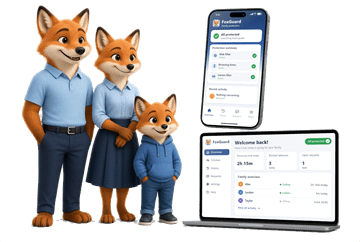
App and parent portal
Manage wherever suits you.
FoxGuard app for your Android phone – with PIN lock and push notifications
Parent portal in the browser – on computer, tablet or phone
One account for both
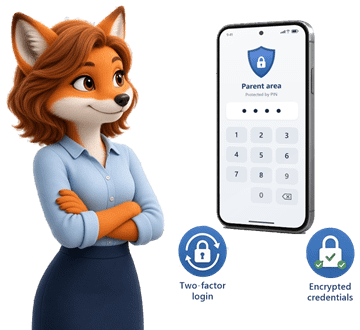
Securely set up
So that rules stay rules.
PIN-protected parent area on your child’s phone
Two-factor sign-in for your account
Sign-in data encrypted on the phone
E-mail report
Short, clear and no detective work
A short e-mail – daily, weekly or monthly, as you prefer: how long your child browsed, what was blocked and which requests are open. The weekly overview shows how time is spread – a good basis for your next family conversation.
Daily report · MiaTuesday
Browsing1 h 12
Blocked3
Requests1
MoTuWeThFrSaSu
Example illustration
Safe on the way
Safe on the way – with location & journey companion
On the way to school, to practice or to a friend’s: your child shows you they’ve arrived safely. Open, not secret – like everything at FoxGuard.
Location sharing – only when switched on
Journey companion for the way to school
Safe places with a message on arrival
Location history, deleted after 7 days
Journey companion
Your child starts the journey themselves, for example to school. You see it live until they arrive – then the companion ends automatically.
Safe places
Set places like home or school. When your child arrives there or leaves, you get a message.
Default: offHistory: 7 days
Location & history
Only when you switch it on: the current location and a history that is deleted automatically after 7 days.
Your child always sees when their location is being shared – never secretly. Default: off. Grandparents only see the location if you allow it.
Grandparent mode
Grandparents welcome too.
When the grandparents look after the children, they can simply help out – no tech course needed. They get their own, very simple view with large text and big buttons. And you keep the overview.
Invite by link or QR code
You invite the grandparents by e-mail link or QR code – into the limited “Caregiver” role.
The essentials, big and simple
See how much time is left today, switch pause on or off, give bonus time (+15 or +30 min) and answer requests with Yes or No.
No history, no rules, nothing to delete
Grandparents can’t see the history or visited sites. They can’t change rules, pair or remove devices, or delete anything.
Access with an end date
For example, just for the holiday week. You can extend it in the app and remove it at any time. The activity log shows you what the grandparents did.
Handy for you, too: as a parent, you can switch on the simple view yourself.
CaregiverMia
Left today25 min
Pause
+15 min+30 min
Mia asksCan I have 20 more minutes?
YesNo
Activity logGrandma gave 30 min
Example illustration
Staying safe online
There are wolves online, too.
The internet is full of good things: knowledge, music, learning games, keeping in touch with friends. But just like in Little Red Riding Hood, there are a few wolves too – and they don’t always look like wolves.
No need to panic. The best protection for your child is talking about it openly. FoxGuard helps on your child’s phone – with screen time, app time limits and the safe FoxGuard browser, honestly and without secretly reading along.
Inappropriate content
Violence, pornography or disturbing images – often just a few clicks away from a harmless search.
How FoxGuard helps
The “adult content” category is on from the start, and SafeSearch is enforced on search engines. You can block further sites yourself; for younger kids there is “selected sites only”.
Games with cost traps and chats
Many online games push in-game purchases and have open chats where strangers can write too.
How FoxGuard helps
The strict games filter blocks known game sites and games embedded in the browser. Learning sites such as chess or Scratch stay allowed.
What you can do
You can limit or block game apps with app time limits, but FoxGuard doesn’t see in-game purchases: protect Play Store purchases with a confirmation and explore games together.
Scams, fake prize draws and phishing
“You’ve won!” – fake prize draws and fake login pages are after passwords, personal data or money.
What you can do
Agree on this: never enter passwords or personal data if something feels odd – ask first.
How FoxGuard helps
If a site is blocked, your child can send a request; with “selected sites only”, that means before every new site. You can block individual sites yourself. FoxGuard has no list of scam sites.
Strangers with bad intentions
Some adults pretend to be the same age as children in chats to win their trust (online grooming).
What you can do
Talk about it openly and agree: “Tell me if someone messages you in a strange way – you won’t be in trouble.” Never meet anyone you only know online.
How FoxGuard helps
FoxGuard reads no messages. The “social networks” category blocks well-known networks and chat sites like Discord in the browser. You can limit messaging apps with app time limits – FoxGuard can’t read messages there.
Cyberbullying
Nasty messages, embarrassing pictures or being left out of group chats – often by children they know.
What you can do
Listen calmly, without blame. Keep screenshots as evidence, don’t reply, block and report the sender. If needed, talk to the school and get help, e.g. from 147.
Too much screen time
Videos and feeds are built so you never stop – sleep, homework and time outdoors fall short.
How FoxGuard helps
Screen time for the whole phone, time limits per app, time windows per weekday, break reminders and an instant pause – agreed together, so it stays fair.
What FoxGuard can’t do: screen time and app time limits apply to the whole child phone; web and games filters work in the FoxGuard browser. What is written in apps like WhatsApp or in games, FoxGuard never sees – there, talking together helps most. More under Transparency
Tips for parents
Ask with interest rather than interrogating: “What do you like doing online at the moment?”
Agree on rules together – and explain why they exist.
Telling you never gets them into trouble. Taking the phone away as a punishment often makes children stay silent.
Never share passwords, addresses or photos with strangers.
FoxGuard is meant to build trust, not destroy it. That’s why there are things FoxGuard never does, on principle.
No reading of messagesNo texts, no chats, no e-mails – FoxGuard doesn’t read them.
No keyloggingWhat your child types stays with your child.
No secret monitoringThe shield in the address bar is always visible and can’t be switched off.
No screenshotsFoxGuard takes no screenshots and doesn’t look into other apps.
No secret trackingLocation only when you switch it on – and your child always sees it.
No other people’s devicesFor the hotspot, never which devices are connected or what they open.
What FoxGuard records – and your child knows it
Screen time and usage time per app – which app, how long
Visited pages and usage time in the FoxGuard browser
Blocked attempts and the reason why
Requests and messages between you
Hotspot: on/off, duration and data volume
Location – only when you switch it on
When your child taps the shield in the address bar, FoxGuard explains exactly that. When screen time or location is on, the child’s phone also always shows a notification.
To be honest
Screen time and app time limits apply to the whole child phone – for this, you allow FoxGuard access to usage data during setup. FoxGuard only sees which app is open and for how long: no content, no messages, no screenshots.
Web and games filters work in the safe FoxGuard browser. So your child doesn’t switch to another browser, you can hide other browsers, for example with Google Family Link.
You only see the location if you switch it on – and your child always sees it. FoxGuard is currently available for Android only.
Data centre in Switzerland
Servers in Switzerland
FoxGuard’s data is stored on servers in Switzerland – hosted by Infomaniak, a Swiss provider with a data centre in the Geneva region.
Switzerlandserver location
InfomaniakSwiss hosting
HTTPSencrypted connection
0 trackerson this website
Privacy
As little data as possible
What FoxGuard doesn’t record can’t get lost.
Encrypted and protected
The connection to the server is encrypted. On the phones, sign-in data is stored encrypted in the Android Keystore – your password is never stored there.
Two-factor sign-in
Protect your parent account additionally with a code from an authenticator app.
No advertising, no data trading
Your family’s data is used only to run FoxGuard for you.
Swiss data protection law
FoxGuard follows the Swiss Federal Act on Data Protection (FADP). More in the privacy policy.
For the whole family
From the children to the grandparents
One FoxGuard for everyone: each child gets their own rules, both parents manage together, and the grandparents help out with the simple view.
Pricing
Every feature in every plan
Two plans, one difference: how many children and devices are included. No hidden extras, no ads.
FoxGuard Solo
For one child
CHF 3.50/ month
CHF 35.–/ year
≈ CHF 2.90 per month · save 16 %
10-day free trial
1 child, up to 3 devices
Both parents manage together
Grandparent access included
All features: screen time, app limits, filters, requests, reports, location
No, the FoxGuard app is currently available for Android only. The parent portal, however, works in any modern browser – including on iPhone, iPad or Mac.
Will my child notice that FoxGuard is active?
Yes – and that’s intentional. The FoxGuard shield is always visible in the address bar of the FoxGuard browser. When your child taps it, FoxGuard explains what is logged. When screen time or location is on, the child’s phone also always shows a notification. It’s best to explain the shield to your child yourself when setting up.
Does FoxGuard read messages or chats?
No. FoxGuard doesn’t read texts, chats or e-mails, doesn’t record keystrokes, takes no screenshots and never tracks your child secretly: you only see the location if you switch it on – and your child always sees it.
Can I see where my child is?
Yes – if you switch it on together. With the journey companion, your child starts a journey, for example to school, and you see it live until they arrive. For safe places like home or school you get a message when your child arrives or leaves. If you like, your child can also share their location all the time; the history is deleted after 7 days. It’s off by default, and your child always sees on their phone when their location is being shared – never secretly. Grandparents only see the location if you allow it. More under “Safe on the way”
Does FoxGuard also block apps or other browsers?
Yes: with screen time and app time limits you decide how long the whole phone and individual apps can be used. Web and games filters work in the FoxGuard browser; you can hide other browsers, for example with Google Family Link, so your child doesn’t use them to get around the rules.
Does the games filter also block learning sites?
The games filter is deliberately strict and also detects games embedded in the browser. Learning sites such as chess or Scratch stay allowed. You can also allow individual sites at any time.
Where is the data stored?
On servers in Switzerland, hosted by Infomaniak. FoxGuard only stores what the features need. You’ll find the details in the privacy policy.
How do I install FoxGuard?
During the test phase, FoxGuard is available as an APK file for Android: copy the file to the phone, open it and allow installation from this source. FoxGuard will soon be available on the Google Play Store.
Can I manage several children?
Yes. Each child has their own rules, and a child can have several devices. You can invite other parents to the family.
Can the grandparents help out too?
Yes. You invite them by e-mail link or QR code into the “Caregiver” role. They get a simple view with large text: see the time left, switch pause on or off, give bonus time (+15 or +30 min) and answer requests with Yes or No. They can’t see the history or visited sites and can’t change rules or devices. You can limit access to a period, for example the holiday week, and remove it at any time. What the grandparents did appears in the activity log. Grandparent access is included in both plans.
Can my child simply switch FoxGuard off?
The parent area on your child’s phone is protected by your parent PIN. To stop your child from uninstalling the app or switching to another browser, we also recommend Android’s parental controls, for example Google Family Link. You can also lock the FoxGuard app on your own phone with a PIN. If a permission for screen time is missing on your child’s phone, you get a message.
How much does FoxGuard cost?
During the test phase, FoxGuard is free. After the official launch, two plans are planned, both with all features: FoxGuard Solo (1 child, up to 3 devices) for CHF 3.50 per month or CHF 35.– per year, and FoxGuard Family (up to 5 children, up to 10 devices) for CHF 5.– per month or CHF 49.– per year. You can try either plan free for 10 days – no payment details needed. Switching from Solo to Family is possible at any time; time already paid is credited.
Get started
Ready for more peace of mind at home?
Create your account in the parent portal and get the app for the phones.
Test phase
FoxGuard for Android
Right now FoxGuard is available as an APK file for test families. One app for both phones – on first launch you choose the role “Child” or “Parent”.




 “Browser”on your child’s phone
 “FoxGuard”on your phone